How To Fix Mysql is not running on Xammp
Here’s the quickest, safe fix on Windows for that Aria crash in XAMPP.
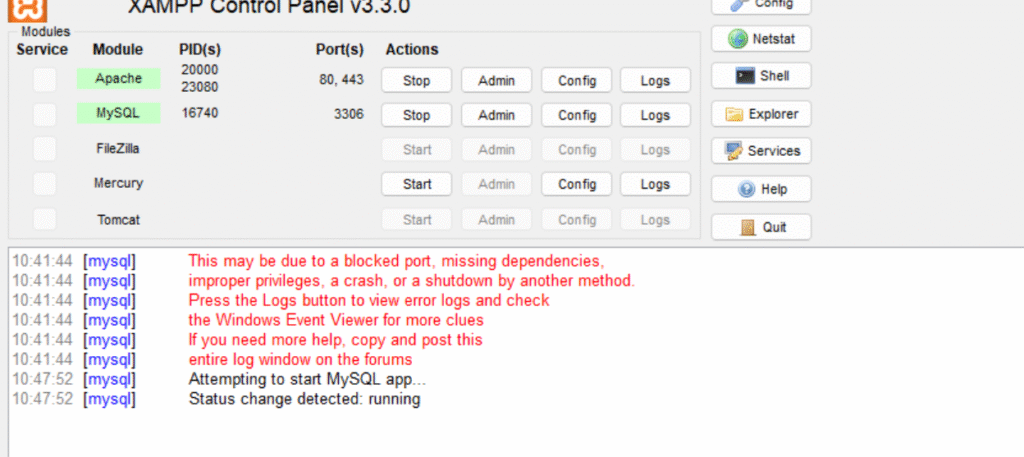
Check Error MySQL Error
2025-09-10 8:33:39 0 [ERROR] mysqld.exe: File ‘C:\xampp\mysql\data\aria_log.00000001’ not found (Errcode: 2 “No such file or directory”)
2025-09-10 8:33:39 0 [ERROR] mysqld.exe: Aria engine: log initialization failed
2025-09-10 8:33:39 0 [ERROR] Plugin ‘Aria’ init function returned error.
2025-09-10 8:33:39 0 [ERROR] Plugin ‘Aria’ registration as a STORAGE ENGINE failed.
2025-09-10 8:33:39 0 [Note] InnoDB: Mutexes and rw_locks use Windows interlocked functions
2025-09-10 8:33:39 0 [Note] InnoDB: Uses event mutexes
2025-09-10 8:33:39 0 [Note] InnoDB: Compressed tables use zlib 1.2.12
2025-09-10 8:33:39 0 [Note] InnoDB: Number of pools: 1
2025-09-10 8:33:39 0 [Note] InnoDB: Using SSE2 crc32 instructions
2025-09-10 8:33:39 0 [Note] InnoDB: Initializing buffer pool, total size = 16M, instances = 1, chunk size = 16M
2025-09-10 8:33:39 0 [Note] InnoDB: Completed initialization of buffer pool
2025-09-10 8:33:39 0 [Note] InnoDB: Starting crash recovery from checkpoint LSN=25285235
2025-09-10 8:33:45 0 [Note] InnoDB: 128 out of 128 rollback segments are active.
2025-09-10 8:33:45 0 [Note] InnoDB: Removed temporary tablespace data file: “ibtmp1”
2025-09-10 8:33:45 0 [Note] InnoDB: Creating shared tablespace for temporary tables
2025-09-10 8:33:45 0 [Note] InnoDB: Setting file ‘C:\xampp\mysql\data\ibtmp1’ size to 12 MB. Physically writing the file full; Please wait …
2025-09-10 8:33:45 0 [Note] InnoDB: File ‘C:\xampp\mysql\data\ibtmp1’ size is now 12 MB.
2025-09-10 8:33:45 0 [Note] InnoDB: Waiting for purge to start
2025-09-10 8:33:45 0 [Note] InnoDB: 10.4.27 started; log sequence number 25285244; transaction id 10752
2025-09-10 8:33:45 0 [Note] InnoDB: Loading buffer pool(s) from C:\xampp\mysql\data\ib_buffer_pool
2025-09-10 8:33:45 0 [Note] Plugin ‘FEEDBACK’ is disabled.
2025-09-10 8:33:45 0 [ERROR] Could not open mysql.plugin table. Some plugins may be not loaded
2025-09-10 8:33:45 0 [ERROR] Failed to initialize plugins.
2025-09-10 8:33:45 0 [ERROR] Aborting
1) Stop MySQL
- Stop it in XAMPP Control Panel. Ensure no mysqld.exe is running (Task Manager).
2) Backup
- Copy the whole folder: C:\xampp\mysql\data to somewhere safe.
3) Repair all Aria tables (offline)
- Open PowerShell as Administrator and run:powershellcd
- C:\xampp\mysql\bin Get-ChildItem -Recurse C:\xampp\mysql\data -Filter *.MAI | ForEach-Object { .\aria_chk.exe -r $_.FullName }
- # Explicitly repair the system plugin table as well
.\aria_chk.exe -r C:\xampp\mysql\data\mysql\plugin.MAI
4) Delete Aria log segments
- Do NOT delete aria_log_control.powershell
- Remove-Item C:\xampp\mysql\data\aria_log.* -Force -ErrorAction SilentlyContinue
5) Start MySQL
- Start from XAMPP Control Panel and check the log.
If you still get “Could not open mysql.plugin table”:6) Restore only the plugin table from XAMPP’s backuppowershell
Copy-Item C:\xampp\mysql\backup\mysql\plugin.* C:\xampp\mysql\data\mysql\ -Force
- Then try starting MySQL again.
7) After it starts, check and optimize tables (optional but recommended)powershell
# If root has no password, omit -p
C:\xampp\mysql\bin\ mysqlcheck.exe -u root -p –auto-repair –optimize –all-databases
Notes
- These steps keep your data intact; the only files removed are the Aria log segments that MariaDB can safely recreate.
- If MySQL still won’t start, repeat step 3 for any database folder that shows errors during aria_chk, then re-run step 4 and try again.
If this above is not working try following ways
This is a MySQL/MariaDB database corruption issue in your XAMPP installation, specifically with the Aria storage engine. Here’s how to fix it:
Solution Steps
1. Stop MySQL Service
- Open XAMPP Control Panel
- Click “Stop” for MySQL (if running)
2. Backup Your Data (Important!)
Before proceeding, backup your database folder:
- Copy C:\xampp\mysql\data to a safe location
3. Delete Aria Log Files
Navigate to your MySQL data directory and delete the aria log files:
C:\xampp\mysql\data del aria_log.*
4. Run Aria Check and Repair
Open PowerShell as Administrator and run
C:\xampp\mysql\bin
.\aria_chk.exe -r C:\xampp\mysql\data\mysql\*.MAI


